Integrations

The Falaê platform offers several integrations to facilitate the management and analysis of feedback. This guide presents all available integrations, explains how to activate them, and describes how they work.
How the Integrations Screen in Falaê Works
Falaê's Integrations Screen was developed to facilitate the management of connections between the platform and other systems, allowing your company to optimize processes and increase its operational efficiency.
Integrations Screen Structure
The screen is organized into 8 categories of integrations, allowing you to easily find the solution you want to activate:
- Reviews - Connections with review platforms (e.g. Google, Tripadvisor, iFood, Cardápio Web).
- Consulting / BI - Integrations that help with data support and analysis.
- Employees - Connection to platforms for employees
- CRM - Synchronization with customer relationship systems.
- Loyalty - Integrations with loyalty and cashback programs.
- Marketing - Integrations for monitoring and tracking campaigns and forms.
- POS (Point of Sale) - Commercial automation systems.
- WhatsApp - Platforms that allow you to send surveys and automations via WhatsApp.
Integration Status
Each integration can be in one of the following states:
✅ Activated (Active State)
- Indicates that the integration is active and working in the company.
- The integration card features a green side border.
- The partner company logo appears in color, indicating that the connection was successfully established.
⚪ Off (Inactive State)
- The company has not yet activated the integration, but you can configure it at any time.
- The card has a gray side border.
- The partner company logo appears without color, indicating that the connection has not yet been made.
🟡 Coming Soon (Integration in Development)
- Integration is not yet available, but will be added soon.
- The card displays a yellow side border.
- The logo of the partner company appears in color.
- There is a notice on the card stating that the integration will be available soon.
How to Activate an Integration?
- Access the Integrations screen in Falaê.
- Choose the integration category you want to activate.
- Click on the desired integration.
- Follow the on-screen instructions to enter the required credentials (tokens, API keys, IDs, etc.).
- Click "Configure" to activate the integration.
After activation, the card status will change to Activated (Green), indicating that the integration is working correctly.
How to Access Integrations
To start any integration on the platform, follow the steps below:
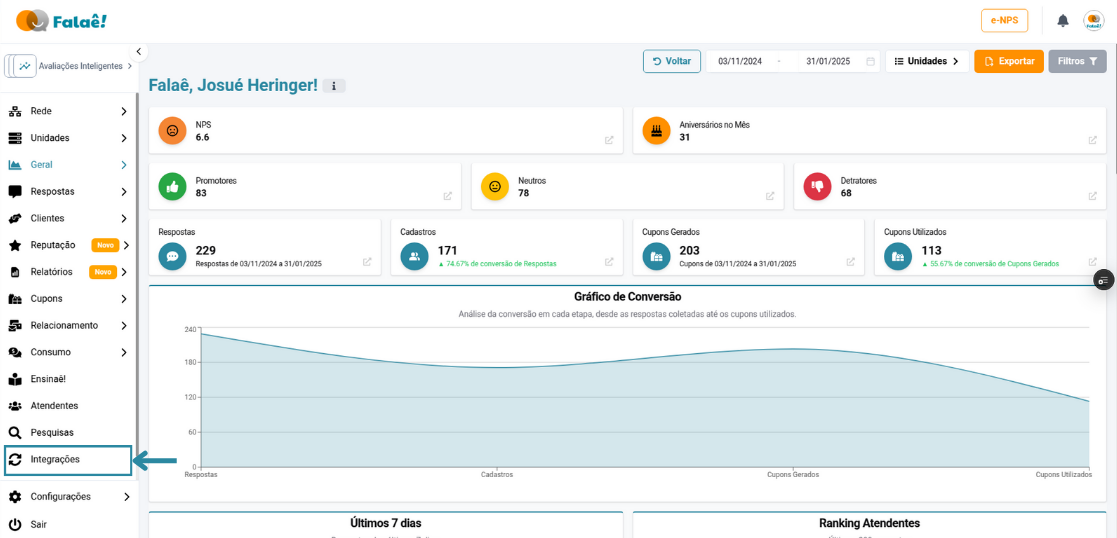
- Access Falaê platform.
- In the side menu (Sidebar), click on "Integrations".
- You will be directed to the screen with all the integrations available in the system.
- Choose the integration you want and follow the instructions for activation.
Request for New Integration
If you don't find the integration you need, you can request the addition of a new integration directly to the Falaê team.
- Access the Integrations screen on Falaê platform.
- Locate the option “Request New Integration”.
- Complete the form with the required information, including:
- Name of the desired integration
- Platform link
- What functionality is expected
After submitting the request, our team will analyze the feasibility and contact you. 🚀