
AnotaAi
Integration with AnotaAi registers customers in Falaê, records their purchases and sends the satisfaction survey after an order is completed.
How integration works
- The customer places an order on AnotaAi.
- When the order is completed, Falaê registers the customer and creates the purchase record. If the customer already has a registration, the purchase record is added to it.
- The customer receives the satisfaction survey via WhatsApp or SMS, depending on the sending options configured in Falaê.
The survey is only sent to completed orders, including scheduled ones. Orders in progress or canceled do not generate sending.
Which number sends the survey?
The satisfaction survey is not sent via the AnotaAi WhatsApp number. To send the survey via WhatsApp, you must have a sending option configured in Falaê. The message will be sent by the number defined in this configuration.
How to configure the integration
1. Obtain the integration key on AnotaAi
- Access the AnotaAi panel with the establishment's account.
- In the side menu, open Settings or General Settings and select Integrations.
- Copy the Integration Key from the store to use in the next step.
If you can't find the key, ask support via chat within the AnotaAi panel for help.
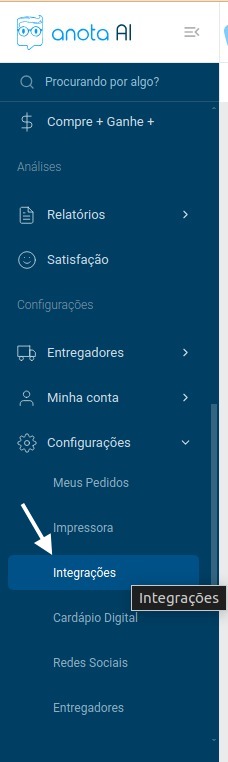
Integrations - AnotaAi
2. Configure AnotAi in Falaê
- Access the Integrations screen in Falaê.
- In the POS (Point of Sale) category, select AnotaAi and click Activate.
- In the Token field, paste the integration key copied from AnotaAi.
- In the Survey field, select the satisfaction survey you want to link.
- If you use WhatsApp automation, fill in Submit survey (minutes) with the desired waiting time to send the survey after Falaê receives the completed order.
- Click Configure.
- Copy the link displayed in the Link field.
3. Request activation on AnotaAi
- Send the copied link to the person responsible for your AnotaAi account.
- Request configuration so that completed orders are sent to Falaê, with customer and purchase record data.
- Wait for confirmation from the person responsible before checking the integration.
If you do not have contact with the person responsible for the account, look for chat support within the AnotaAi panel and ask for guidance on activating the integration with Falaê.
You can send this message along with the link:
Hello! I want to activate the integration of AnotaAi with Falaê. Follow the link generated in Falaê. Can you configure the sending of finished orders, with the customer and purchase record data, and notify me when it is ready?
This step is required to complete activation. If the integration is already in use, ask the person responsible to confirm that it is configured to send completed orders.
How to check the integration
- Place a test order on AnotaAi, using your name and phone number.
- Complete the order until it has a Completed status.
- Check the customer registration and purchase record linked to the order on Falaê.
- Check if the survey reached the phone number provided. If you have configured a waiting time for sending via WhatsApp, wait for this period.
If the purchase record does not appear, ask the person responsible at AnotaAi to check the activation and the link sent. If the purchase record appears, but the survey does not arrive, check the sending settings in Falaê.
For questions about using AnotaAi, consult the Help Center.